Step 5: Adding feeders
Navigate to Settings → Feeders and tap the + to the right of Feeders.
Go to the TouchTerminal of the Alma Pro that you want to add and open the following menu there. The numbers in the image correspond to the order of the steps:
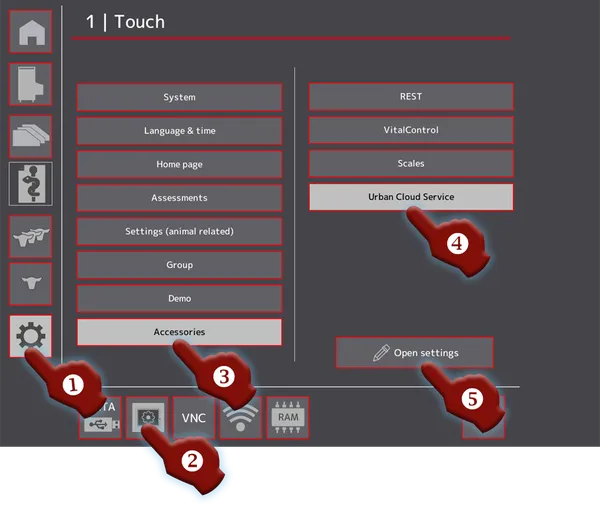
- On the left, tap Settings (gear icon).
- In the bottom bar, tap the Touch settings icon.
- Tap Accessories.
- Tap Urban Cloud Service.
- Tap Open settings.
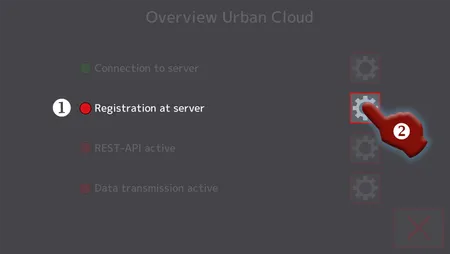
The TouchTerminal shows the Overview Urban Cloud. The red indicator next to Registration at server shows that the terminal is not registered yet. Tap the gear icon next to this line.
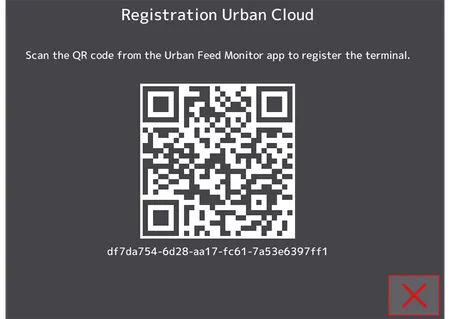
The TouchTerminal shows the Urban Cloud registration with a QR code. Scan it with the app.
The app reports Feeder added.
Back in the app, you have two options:
- More feeders to add: Repeat this step for each additional feeder.
- All feeders added: Continue with Step 6: Licensing feeders.