Registering the terminal with the Urban Cloud server
Checking the touch terminal’s registration status
Section titled “Checking the touch terminal’s registration status”In the second installation step, it must be checked whether the touch terminal is already registered with the Urban Cloud server; only then can data be successfully transmitted to the Urban Cloud. The color of the circular status indicator (digit ➀) to the left of the second list entry Registration at server on the installation screen provides this information:
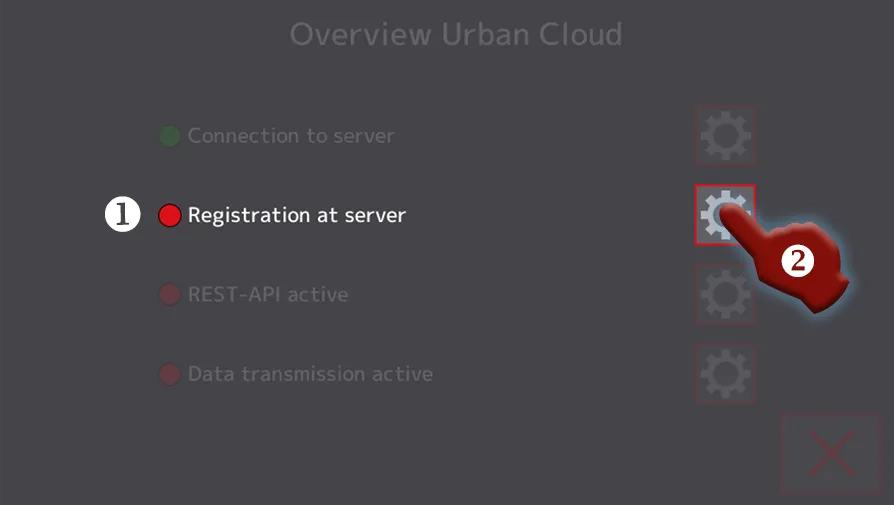
Screenshot 1: Cloud setup, touch terminal registration status
- If the status indicator ➀ green lights up, the touch terminal has already been activated. Everything is fine, and in the third installation step you can activate the REST interface.
- If the status indicator lights up red, the terminal has not yet been registered with the Cloud server, and action is required.
- Tap the button (digit ➁) to the right of the
Registration at serverlist entry to open the screen for registering the touch terminal (Screenshot 2). - Follow the instructions in the next section to register the touch terminal with the Urban Cloud server.
- Tap the button (digit ➁) to the right of the
Registering the touch terminal with the Cloud server
Section titled “Registering the touch terminal with the Cloud server”- Log in to the Urban Feed Monitor app with your user account.
- Register the touch terminal with the Urban Cloud server by scanning the QR code on the screen with your mobile device.
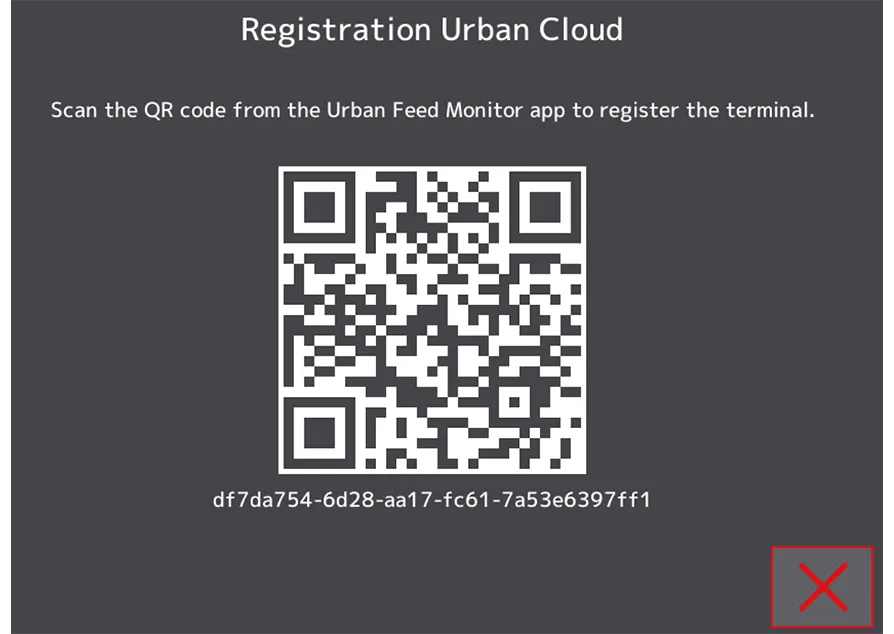
Screenshot 2: QR code with UUID for registering the touch terminal
- The status indicator (Screenshot 1, digit ➀) to the left of the
Registration at serverlist entry should now light up green, signaling that the touch terminal has been successfully registered with the Urban Cloud server.
Now activate the local REST interface of the touch terminal in the next installation step.